> ## Documentation Index
> Fetch the complete documentation index at: https://docs.dify.ai/llms.txt
> Use this file to discover all available pages before exploring further.
# Authorize Data Source
Dify supports connections to various external data sources. To ensure data security and access control, different data sources require appropriate authorization configurations. Dify provides two main authorization methods: **API Key** and **OAuth**.
## Access Data Source Authorization
In Dify, you can access data source authorization through the following two methods:
### I. Knowledge Pipeline Orchestration
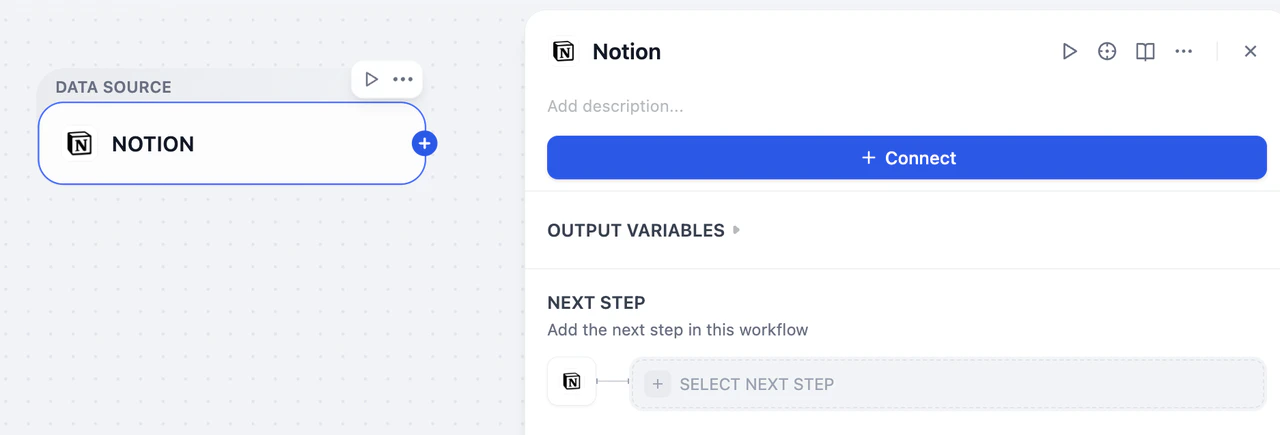
When orchestrating a knowledge pipeline, select the data source node that requires authorization. Click **Connect** on the right panel.
 ### II. Settings
Click your avatar in the upper right corner and select **Settings**. Navigate to **Data Sources** and find the data source you wish to authorize.
### II. Settings
Click your avatar in the upper right corner and select **Settings**. Navigate to **Data Sources** and find the data source you wish to authorize.
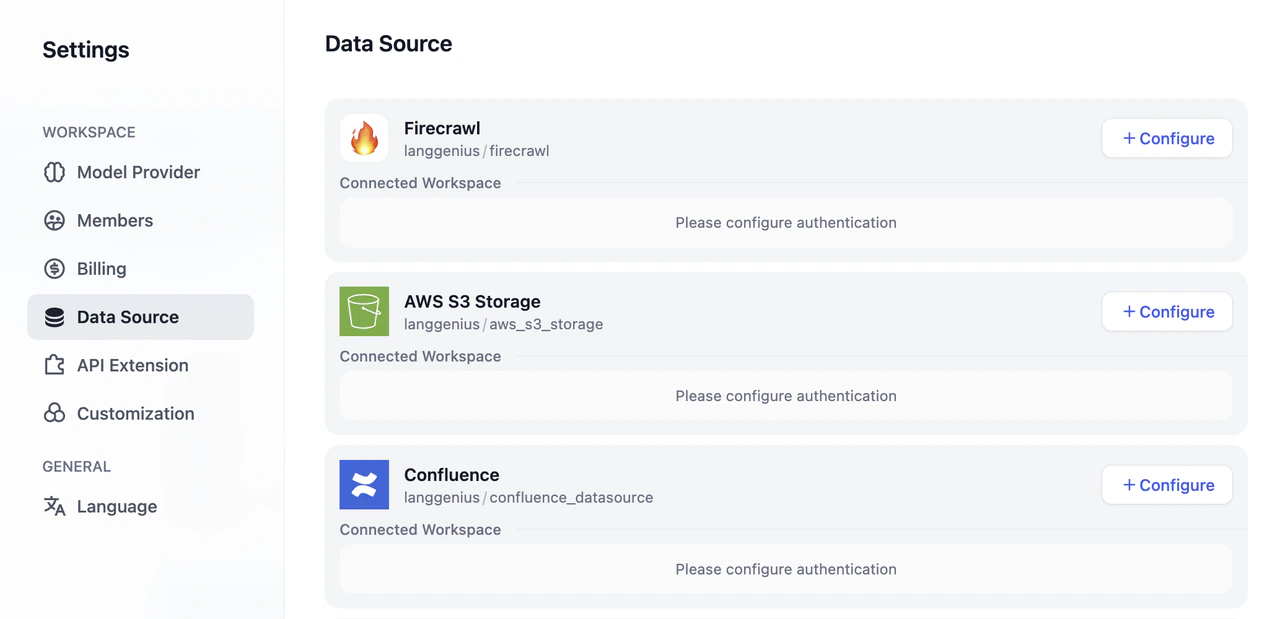 ## Supported Data Source Authorization
| Data Source | API Key | OAuth |
| ------------ | ------- | ----- |
| Notion | ✅ | ✅ |
| Jina Reader | ✅ | |
| Firecrawl | ✅ | |
| Google Drive | | ✅ |
| Dropbox | | ✅ |
| OneDrive | | ✅ |
## Authorization Processes
### API Key Authorization
API Key authorization is a key-based authentication method suitable for enterprise-level services and developer tools. You need to generate API Keys from the corresponding service providers and configure them in Dify.
#### Process
1. On the **Data Source** page, navigate to the corresponding data source. Click **Configure** and then **Add API Key**.
## Supported Data Source Authorization
| Data Source | API Key | OAuth |
| ------------ | ------- | ----- |
| Notion | ✅ | ✅ |
| Jina Reader | ✅ | |
| Firecrawl | ✅ | |
| Google Drive | | ✅ |
| Dropbox | | ✅ |
| OneDrive | | ✅ |
## Authorization Processes
### API Key Authorization
API Key authorization is a key-based authentication method suitable for enterprise-level services and developer tools. You need to generate API Keys from the corresponding service providers and configure them in Dify.
#### Process
1. On the **Data Source** page, navigate to the corresponding data source. Click **Configure** and then **Add API Key**.
 2. In the pop-up window, fill in the **Authorization Name** and **API Key**. Click **Save** to complete the setup.
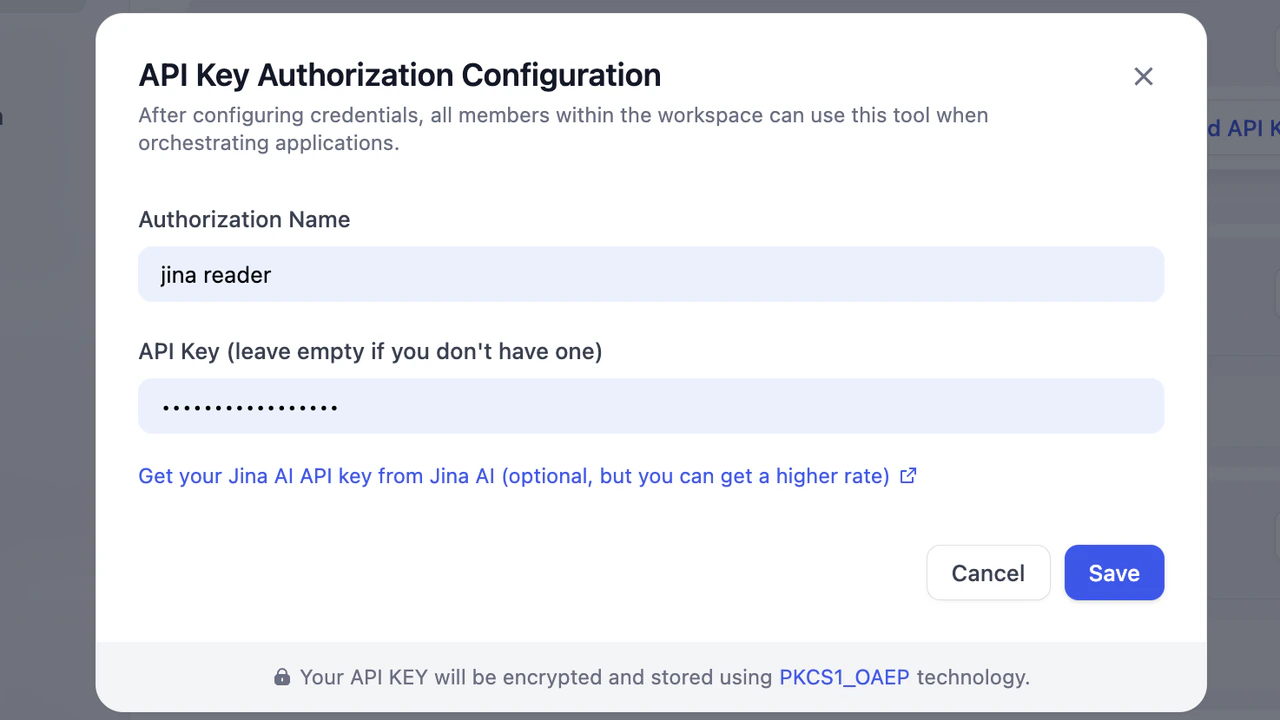 The API key will be securely encrypted. Once completed, you can start using the data source (e.g., Jina Reader) for knowledge pipeline orchestration.
 ### OAuth Authorization
OAuth is an open standard authorization protocol that allows users to authorize third-party applications to access their resources on specific service providers without exposing passwords.
#### Process
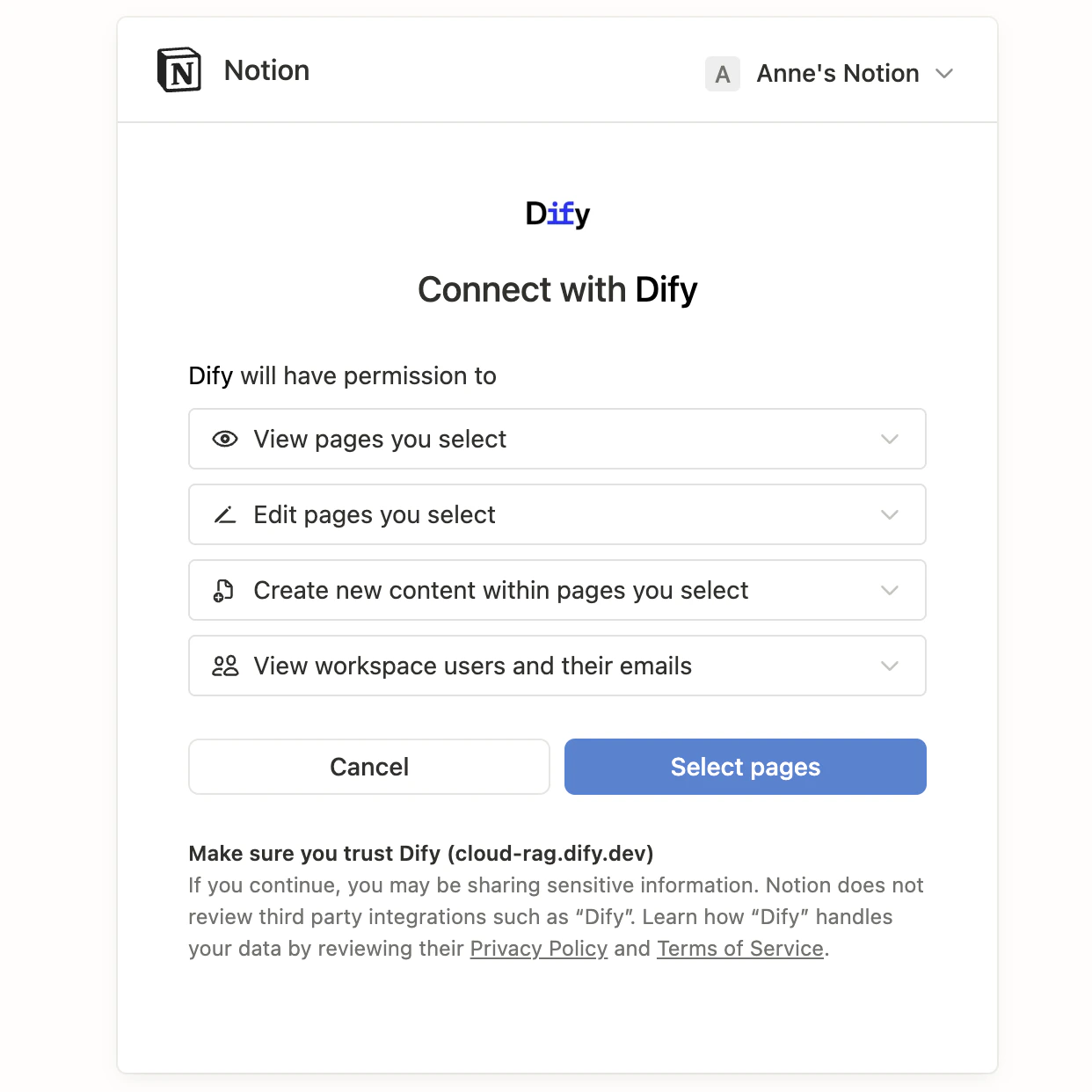
1. On the **Data Source** page, select an OAuth-supported data source. Click **Configure** and then **Add OAuth**.
### OAuth Authorization
OAuth is an open standard authorization protocol that allows users to authorize third-party applications to access their resources on specific service providers without exposing passwords.
#### Process
1. On the **Data Source** page, select an OAuth-supported data source. Click **Configure** and then **Add OAuth**.
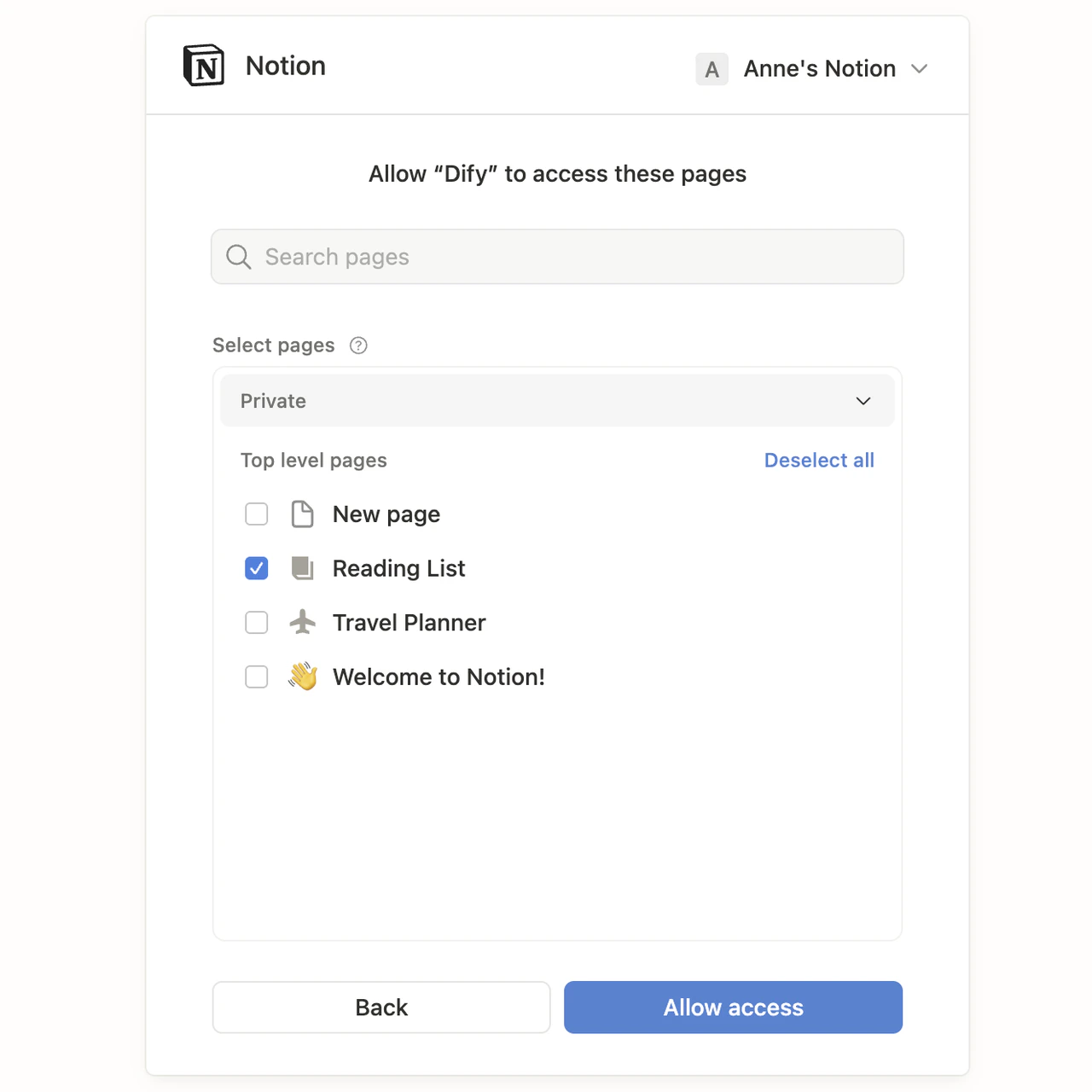
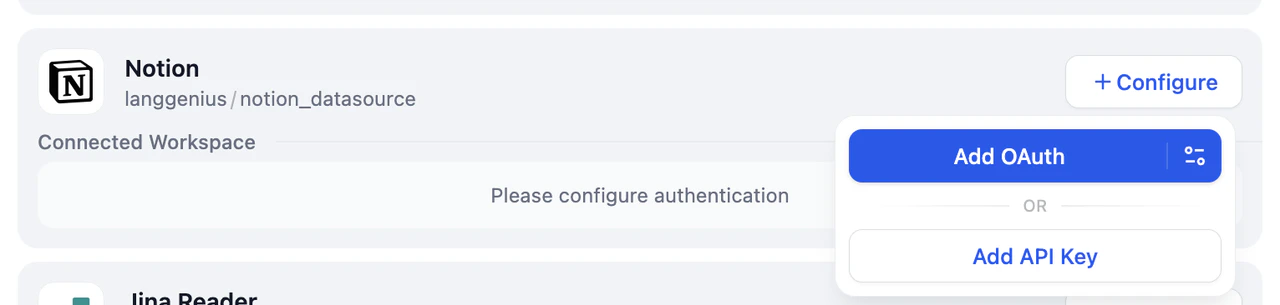 2. Review the permission scope and click **Allow Access**.
#### OAuth Client Settings
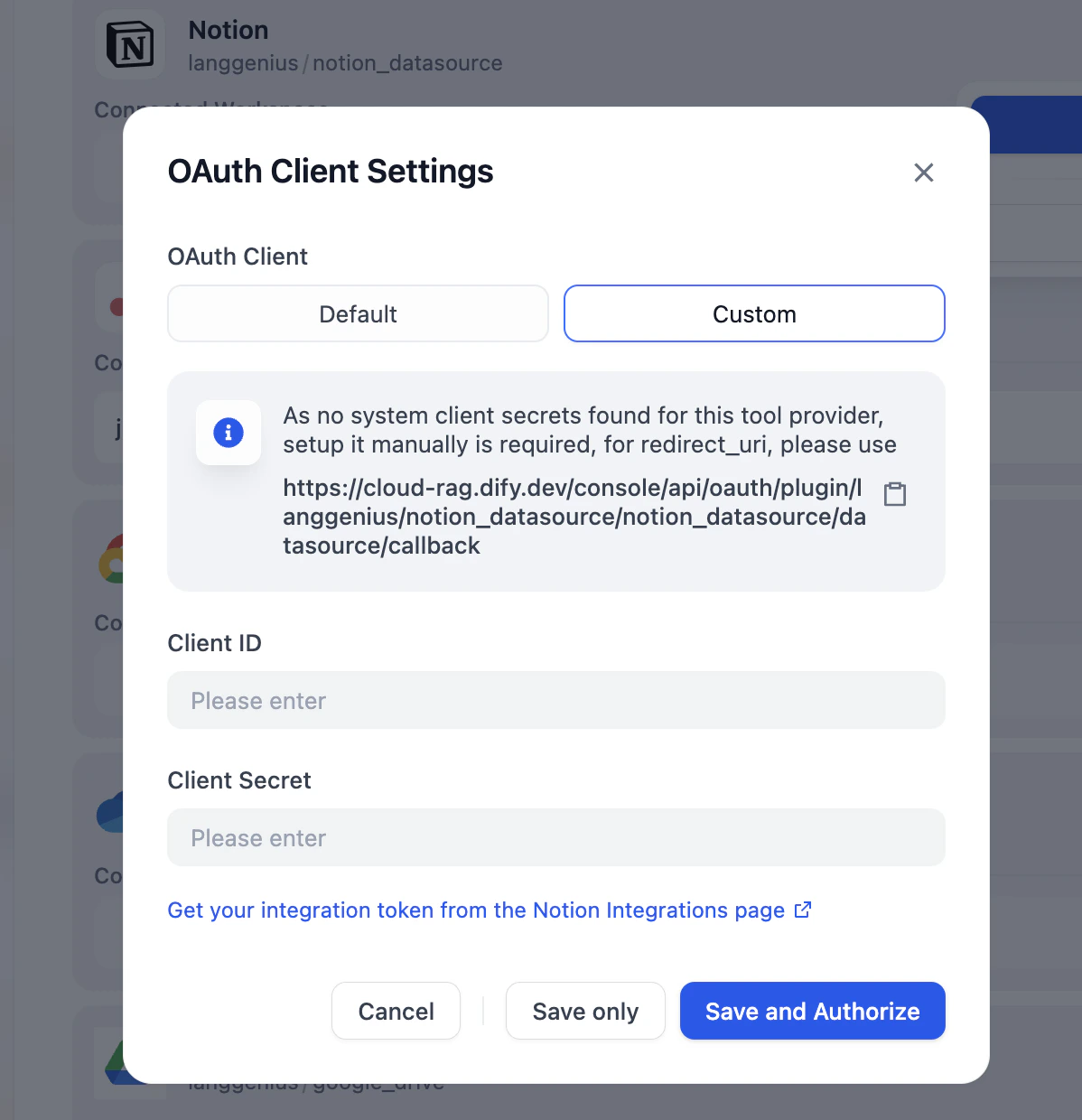
Dify provides two OAuth client configuration methods: **Default** and **Custom**.
2. Review the permission scope and click **Allow Access**.
#### OAuth Client Settings
Dify provides two OAuth client configuration methods: **Default** and **Custom**.
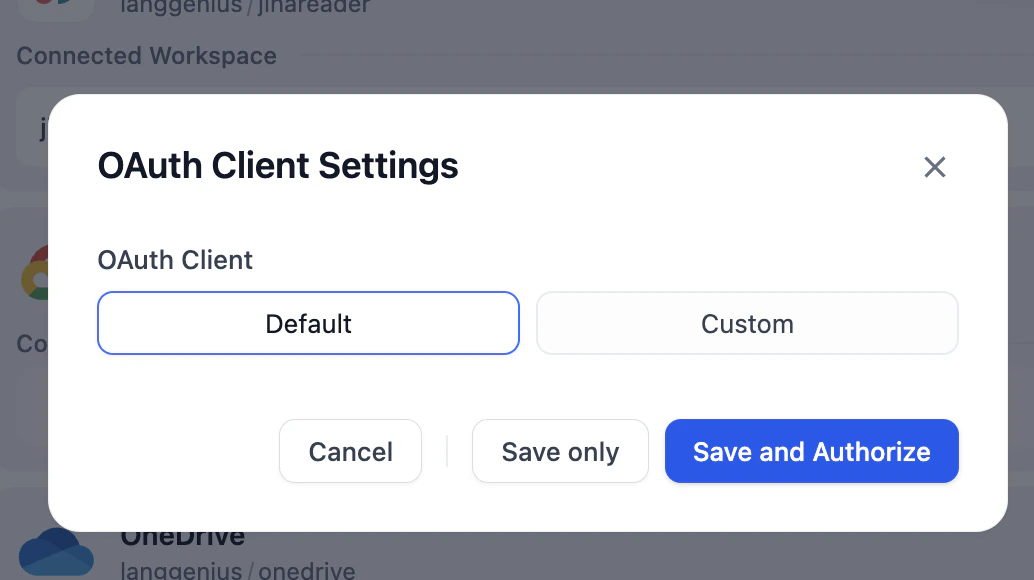 The default client uses OAuth parameters that Dify pre-configures and maintains, so you can add credentials in one click without any extra setup.
The custom client lets you register your own OAuth application on the third-party platform and provide its parameters. Use it for data sources without a default client, or when you have specific security or compliance requirements.
**Process for Custom OAuth**
1. On the **Data Source** page, select an OAuth-supported data source. Click **Configure** and then the **Setting icon** on the right side of **Add OAuth**.
The default client uses OAuth parameters that Dify pre-configures and maintains, so you can add credentials in one click without any extra setup.
The custom client lets you register your own OAuth application on the third-party platform and provide its parameters. Use it for data sources without a default client, or when you have specific security or compliance requirements.
**Process for Custom OAuth**
1. On the **Data Source** page, select an OAuth-supported data source. Click **Configure** and then the **Setting icon** on the right side of **Add OAuth**.
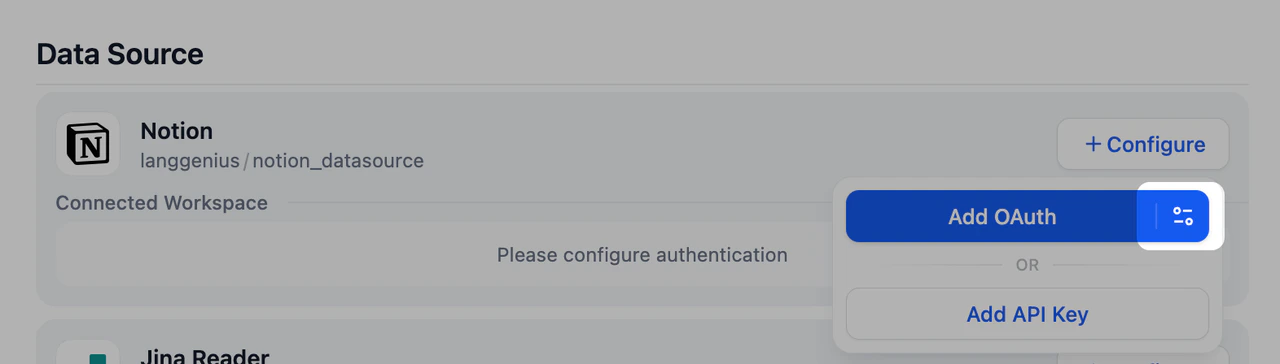 2. Choose **Custom**, enter the **Client ID** and **Client Secret**. Click **Save and Authorize** to complete the authorization.