> ## Documentation Index
> Fetch the complete documentation index at: https://docs.dify.ai/llms.txt
> Use this file to discover all available pages before exploring further.
# Plugins
> Extend Dify with custom models, tools, and integrations through modular components
Plugins are how Dify connects to everything: model providers, external APIs, custom tools. They're modular components that extend your workspace capabilities, installed once but usable everywhere.
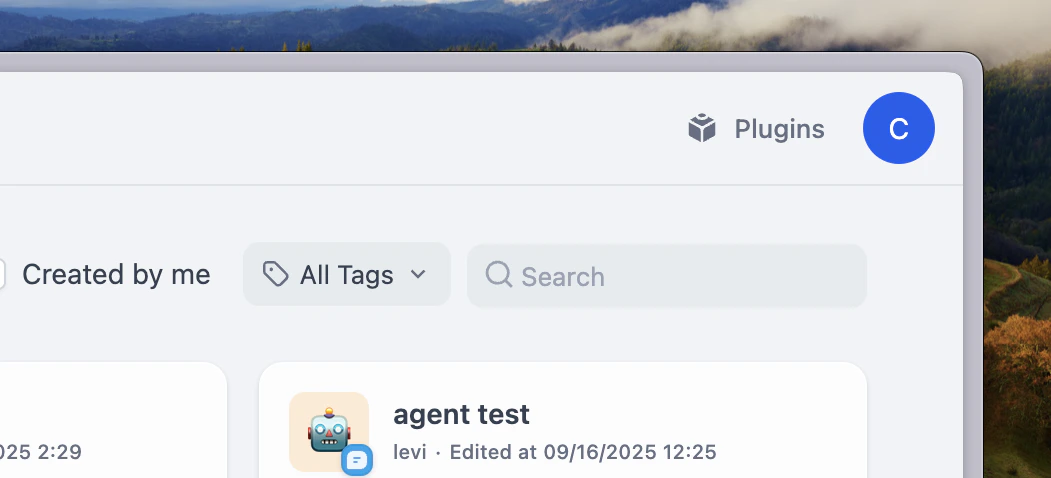 Access plugin management through the Plugins tab in your workspace.
## How Plugins Work
Access plugin management through the Plugins tab in your workspace.
## How Plugins Work
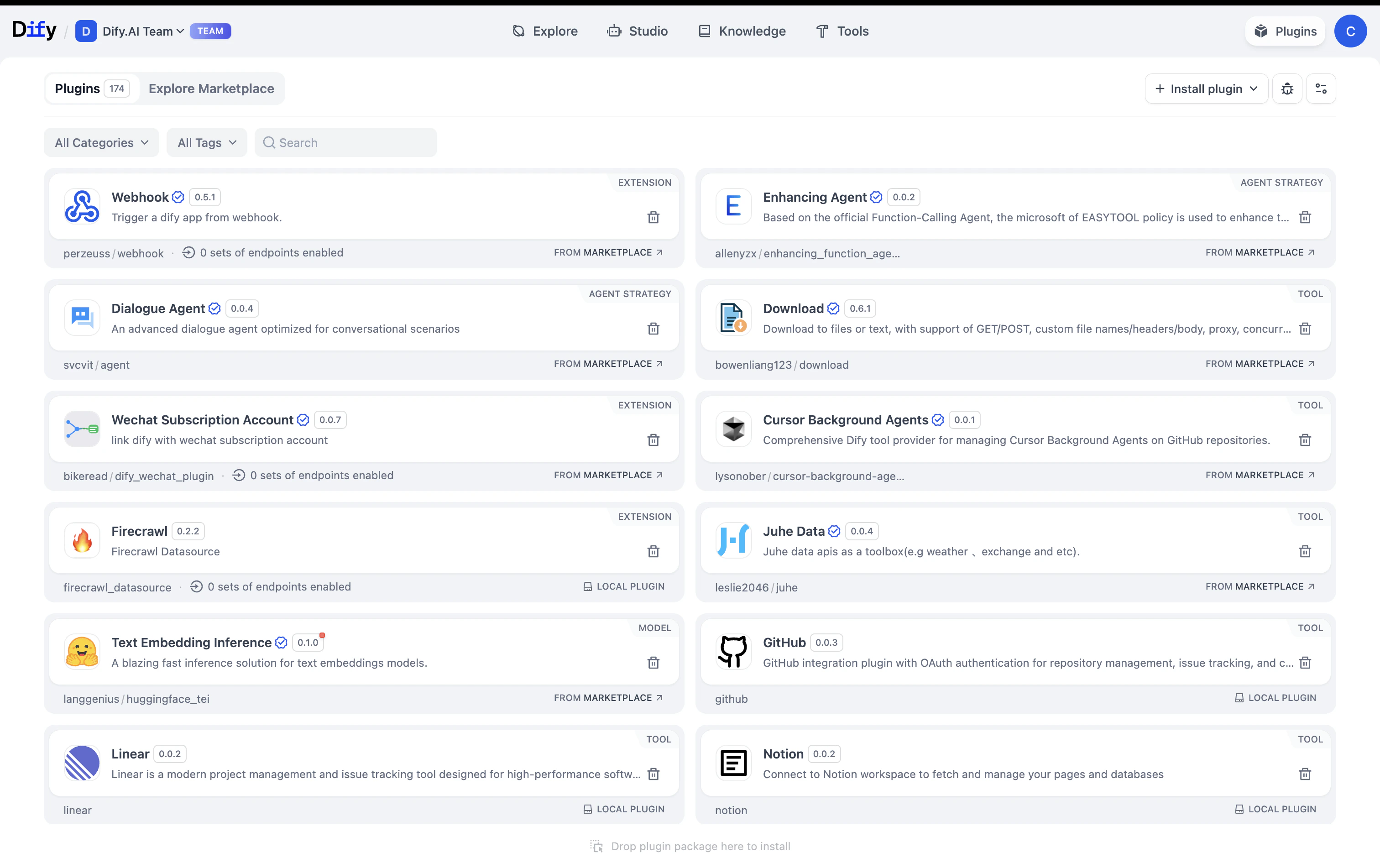 Plugins are workspace-scoped. When you install a plugin, every application in your workspace can use it. Team members access plugins based on their roles:
Install, configure, and remove plugins for the entire workspace
Use installed plugins in applications they create or edit
## Install Plugins
Official and partner plugins, tested and maintained
Install from any public repository with URL + version
Custom .zip packages for private or internal plugins
## What Plugins Really Are
Think of plugins as the bridge between Dify and the outside world:
Every LLM in Dify (OpenAI, Anthropic, etc.) is actually a plugin
API calls, data processing, calculations, all plugin-based
Expose your Dify apps as APIs that external systems can call
Plugins can call back into Dify to use models, tools, or workflows
## Workspace Plugin Settings
Control plugin permissions in your workspace settings:
**Everyone** - Any member can install plugins
**Admin Only** - Only workspace admins can install (recommended)
**Everyone** - All members can debug plugin issues
**Admin Only** - Restrict debugging to admins
Choose update strategy (security only vs. all updates) and specify which plugins to include or exclude
After installing, most plugins need configuration: API keys, endpoints, or service settings. These apply workspace-wide.
## Build Custom Plugins
Develop plugins using Dify's SDK when you need custom functionality:
1. Get a debugging key from Settings → Plugins → Debugging
2. Build and test your plugin locally
3. Package as a .zip with manifest and dependencies
4. Distribute privately or publish to the marketplace
Plugins are workspace-scoped. When you install a plugin, every application in your workspace can use it. Team members access plugins based on their roles:
Install, configure, and remove plugins for the entire workspace
Use installed plugins in applications they create or edit
## Install Plugins
Official and partner plugins, tested and maintained
Install from any public repository with URL + version
Custom .zip packages for private or internal plugins
## What Plugins Really Are
Think of plugins as the bridge between Dify and the outside world:
Every LLM in Dify (OpenAI, Anthropic, etc.) is actually a plugin
API calls, data processing, calculations, all plugin-based
Expose your Dify apps as APIs that external systems can call
Plugins can call back into Dify to use models, tools, or workflows
## Workspace Plugin Settings
Control plugin permissions in your workspace settings:
**Everyone** - Any member can install plugins
**Admin Only** - Only workspace admins can install (recommended)
**Everyone** - All members can debug plugin issues
**Admin Only** - Restrict debugging to admins
Choose update strategy (security only vs. all updates) and specify which plugins to include or exclude
After installing, most plugins need configuration: API keys, endpoints, or service settings. These apply workspace-wide.
## Build Custom Plugins
Develop plugins using Dify's SDK when you need custom functionality:
1. Get a debugging key from Settings → Plugins → Debugging
2. Build and test your plugin locally
3. Package as a .zip with manifest and dependencies
4. Distribute privately or publish to the marketplace