> ## Documentation Index
> Fetch the complete documentation index at: https://docs.dify.ai/llms.txt
> Use this file to discover all available pages before exploring further.
# Dify Tools
> Manage tools that enable LLMs to interact with external services and APIs
Add tools to your apps so the LLM can reach external services and APIs for real-time data, web searches, database queries, or content processing.
Use tools in:
* Workflow / Chatflow apps (as standalone [Tool nodes](/en/cloud/use-dify/nodes/tools), or within [Agent nodes](/en/cloud/use-dify/nodes/agent#tool-configuration))
* [Agent apps](/en/cloud/use-dify/build/agent#extend-the-agent-with-dify-tools)
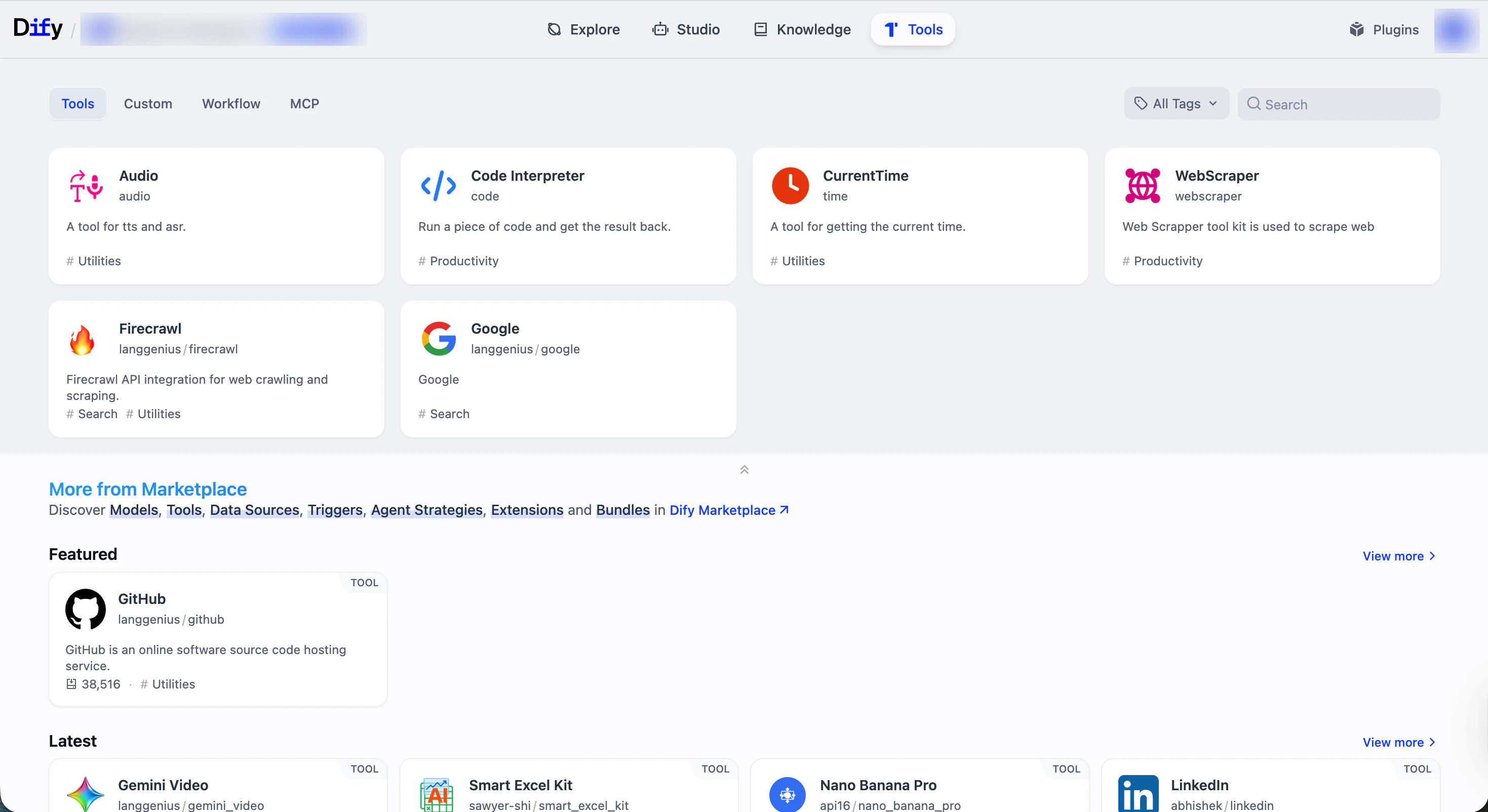
All your tools can be managed on the **Tools** page.
 ## Tool Types
[Plugin](/en/cloud/use-dify/workspace/plugins) tools are ready-to-use integrations provided by Dify and the community for common utilities and popular third-party services.
In addition to built-in plugin tools (like CurrentTime) available out of the box, you can explore and install more from [Dify Marketplace](https://marketplace.dify.ai/).
**Manage Authorization**
Some plugin tools (e.g., Google and GitHub) require authentication—such as API keys or OAuth—before use.
You can manage workspace-level credentials for these tools from the **Tools** or **Plugins** page, or directly within the tool settings inside an app or node.
Integrate external services as custom tools using a standard OpenAPI (Swagger) specification. This is ideal for connecting Dify to internal systems or third-party services not available as plugins.
Paste your OpenAPI schema, import it from a URL, or start from a provided example. Dify will parse the spec and generate the tool interface automatically.
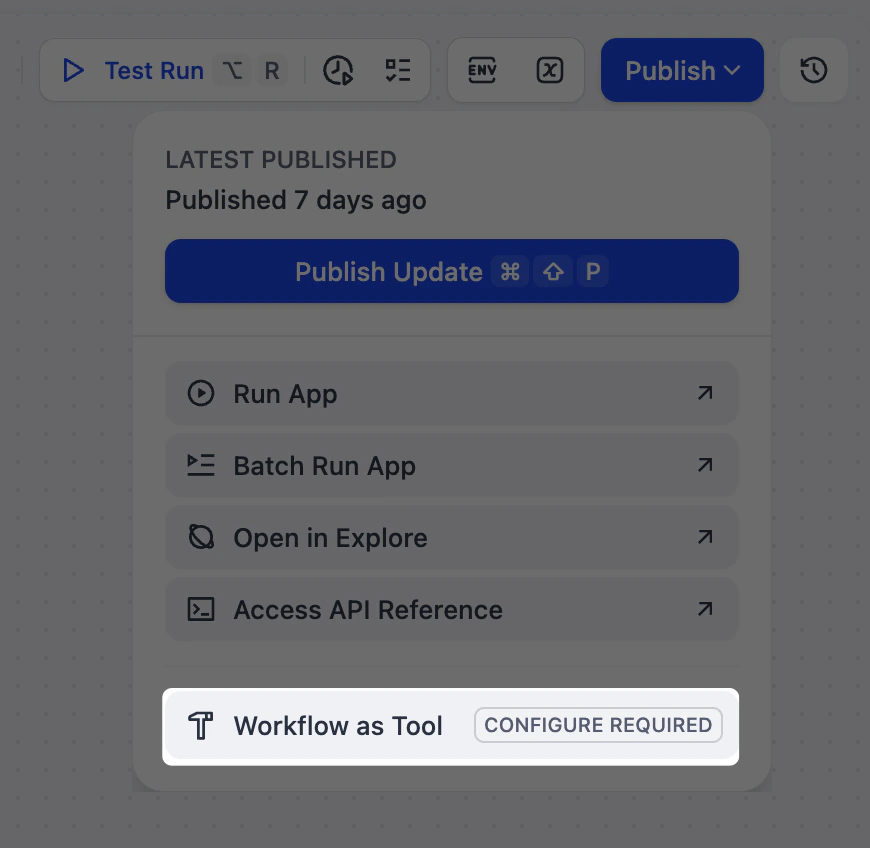
Turn any workflow that starts with a User Input node into a reusable tool. **Chatflows are not supported**.
This allows you to encapsulate complex, multi-step logic into a single function that can be easily reused across different Dify apps.
## Tool Types
[Plugin](/en/cloud/use-dify/workspace/plugins) tools are ready-to-use integrations provided by Dify and the community for common utilities and popular third-party services.
In addition to built-in plugin tools (like CurrentTime) available out of the box, you can explore and install more from [Dify Marketplace](https://marketplace.dify.ai/).
**Manage Authorization**
Some plugin tools (e.g., Google and GitHub) require authentication—such as API keys or OAuth—before use.
You can manage workspace-level credentials for these tools from the **Tools** or **Plugins** page, or directly within the tool settings inside an app or node.
Integrate external services as custom tools using a standard OpenAPI (Swagger) specification. This is ideal for connecting Dify to internal systems or third-party services not available as plugins.
Paste your OpenAPI schema, import it from a URL, or start from a provided example. Dify will parse the spec and generate the tool interface automatically.
Turn any workflow that starts with a User Input node into a reusable tool. **Chatflows are not supported**.
This allows you to encapsulate complex, multi-step logic into a single function that can be easily reused across different Dify apps.
 [Model Context Protocol (MCP)](https://modelcontextprotocol.io/) lets AI apps connect to external data and tools through a standard interface. An MCP server wraps external resources—like databases, file systems, or APIs—and makes them accessible to AI apps via this protocol.
By connecting to an MCP server, you can import these external resources as tools in Dify and refresh the list anytime to pull the latest updates.
[Model Context Protocol (MCP)](https://modelcontextprotocol.io/) lets AI apps connect to external data and tools through a standard interface. An MCP server wraps external resources—like databases, file systems, or APIs—and makes them accessible to AI apps via this protocol.
By connecting to an MCP server, you can import these external resources as tools in Dify and refresh the list anytime to pull the latest updates.