> ## Documentation Index
> Fetch the complete documentation index at: https://docs.dify.ai/llms.txt
> Use this file to discover all available pages before exploring further.
# Sync Data from Notion
Dify datasets support importing from Notion and setting up **synchronization** so that data updates in Notion are automatically synced to Dify.
Before you can authorize Notion, create a Notion integration and set the corresponding environment variables. See [Configure the Notion Integration](#configure-the-notion-integration) below.
### Authorization Verification
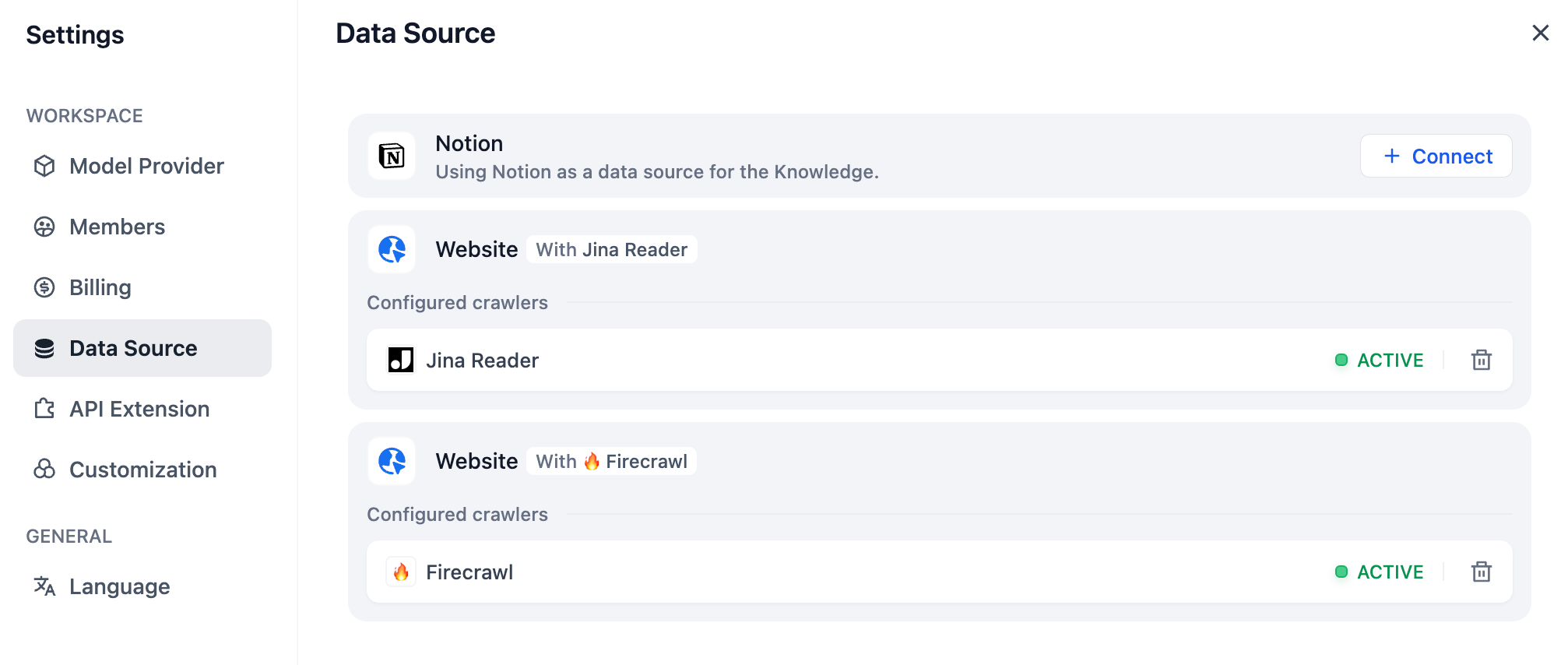
1. When creating a dataset and selecting the data source, click **Sync from Notion Content -- Bind Now** and follow the prompts to complete the authorization verification.
2. Alternatively, you can go to **Settings -- Data Sources -- Add Data Source**, click on the Notion source **Bind**, and complete the authorization verification.
### Import Notion Data
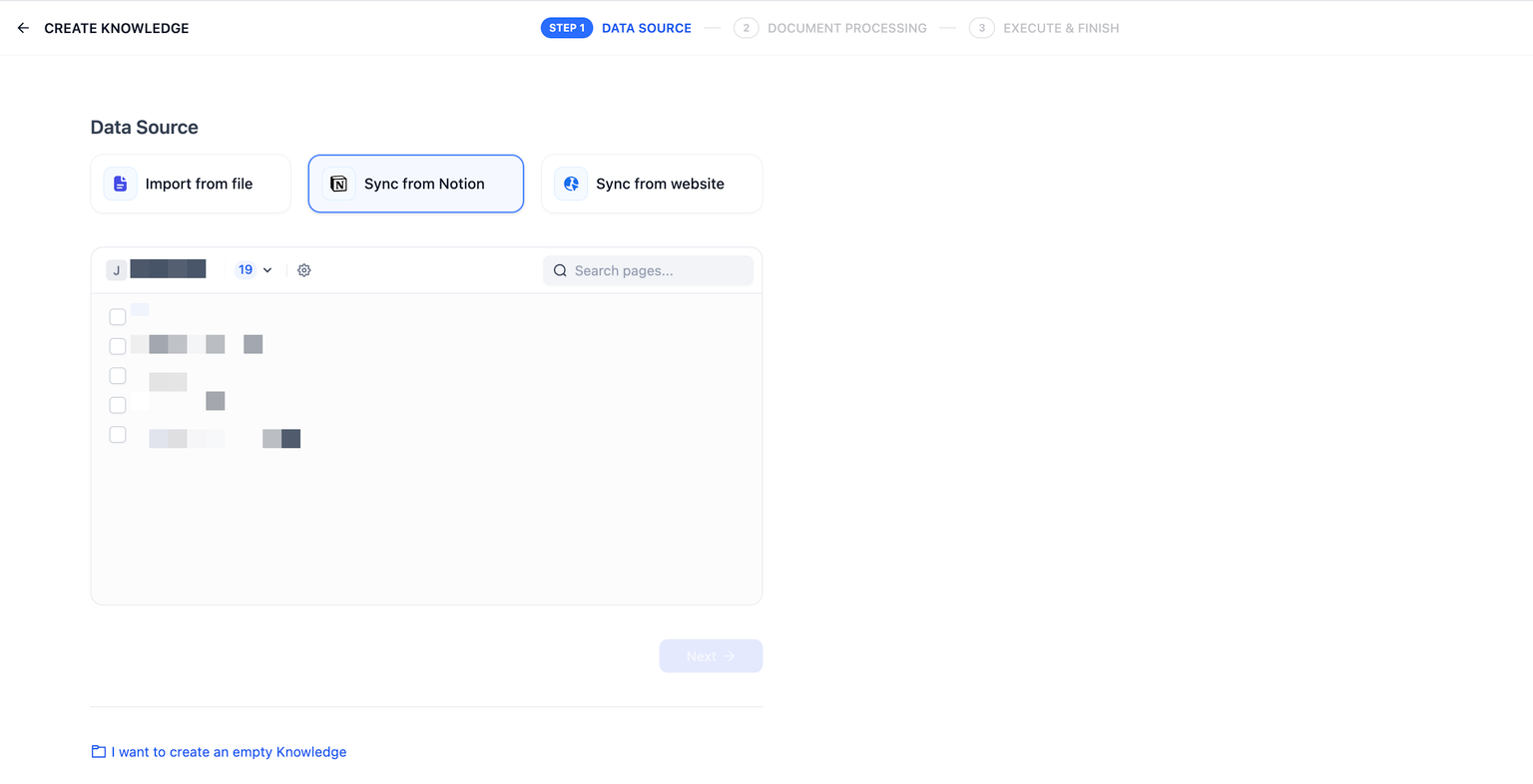
After completing the authorization verification, go to the create dataset page, click **Sync from Notion Content**, and select the authorized pages you need to import.
### Chunking and Cleaning
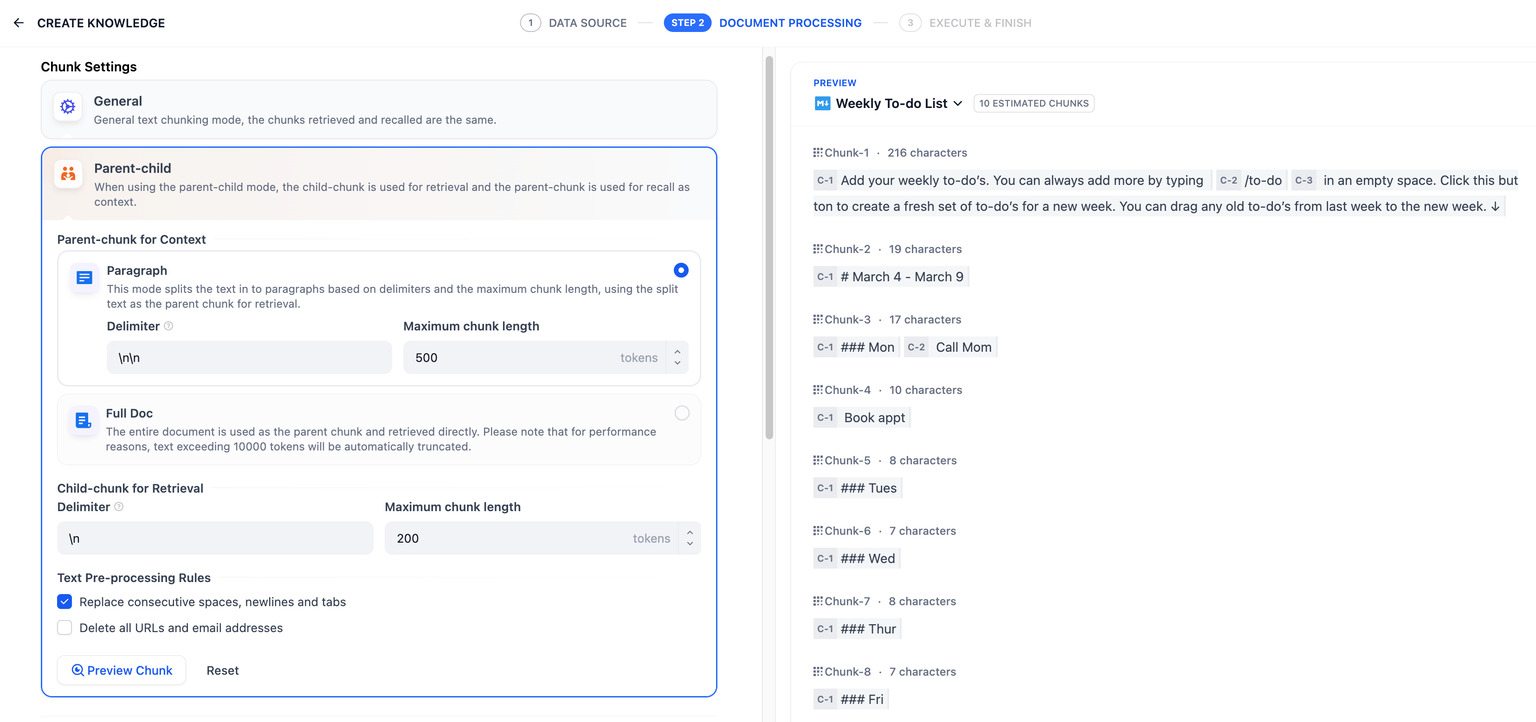
Next, choose a [chunking mode](/en/self-host/use-dify/knowledge/create-knowledge/chunking-and-cleaning-text) and [indexing method](/en/self-host/use-dify/knowledge/create-knowledge/setting-indexing-methods) for your knowledge base, then save it and wait for the automatically processing. Dify not only supports importing standard Notion pages but can also consolidate and save page attributes from database-type pages.
Images and files cannot be imported, and data from tables will be converted to text.
### Synchronize Notion Data
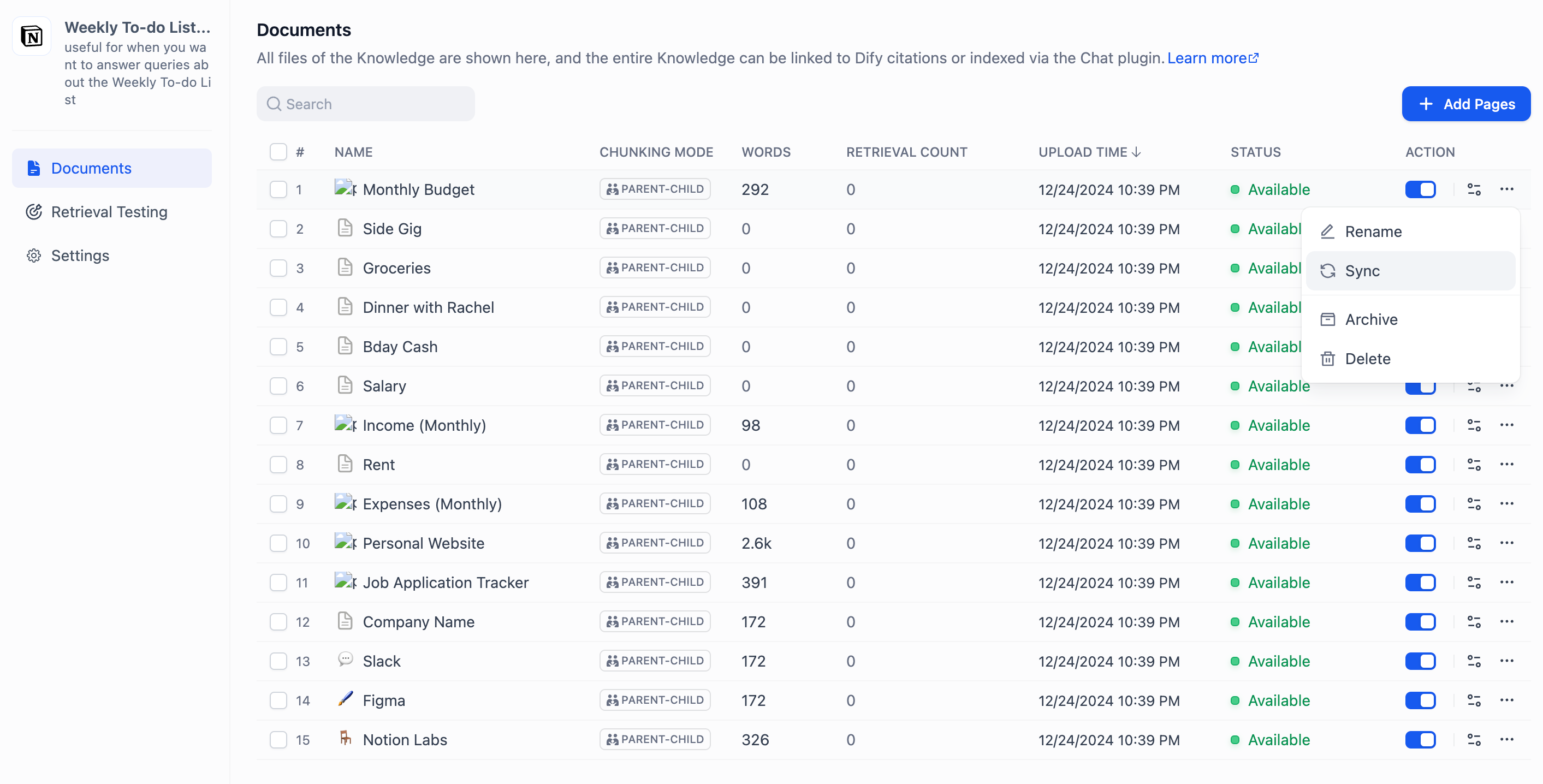
If your Notion content has been updated, you can sync the changes by clicking the **Sync** button for the corresponding page in the document list of your knowledge base. Syncing involves an embedding process, which will consume tokens from your embedding model.
### Configure the Notion Integration
Notion offers two integration options: **internal integration** and **public integration**. Pick one based on whether the integration will only be used inside your own Notion workspace (internal) or distributed for others to install (public). For more details, refer to the [official Notion documentation](https://developers.notion.com/guides/get-started/authorization).
#### Use an internal integration
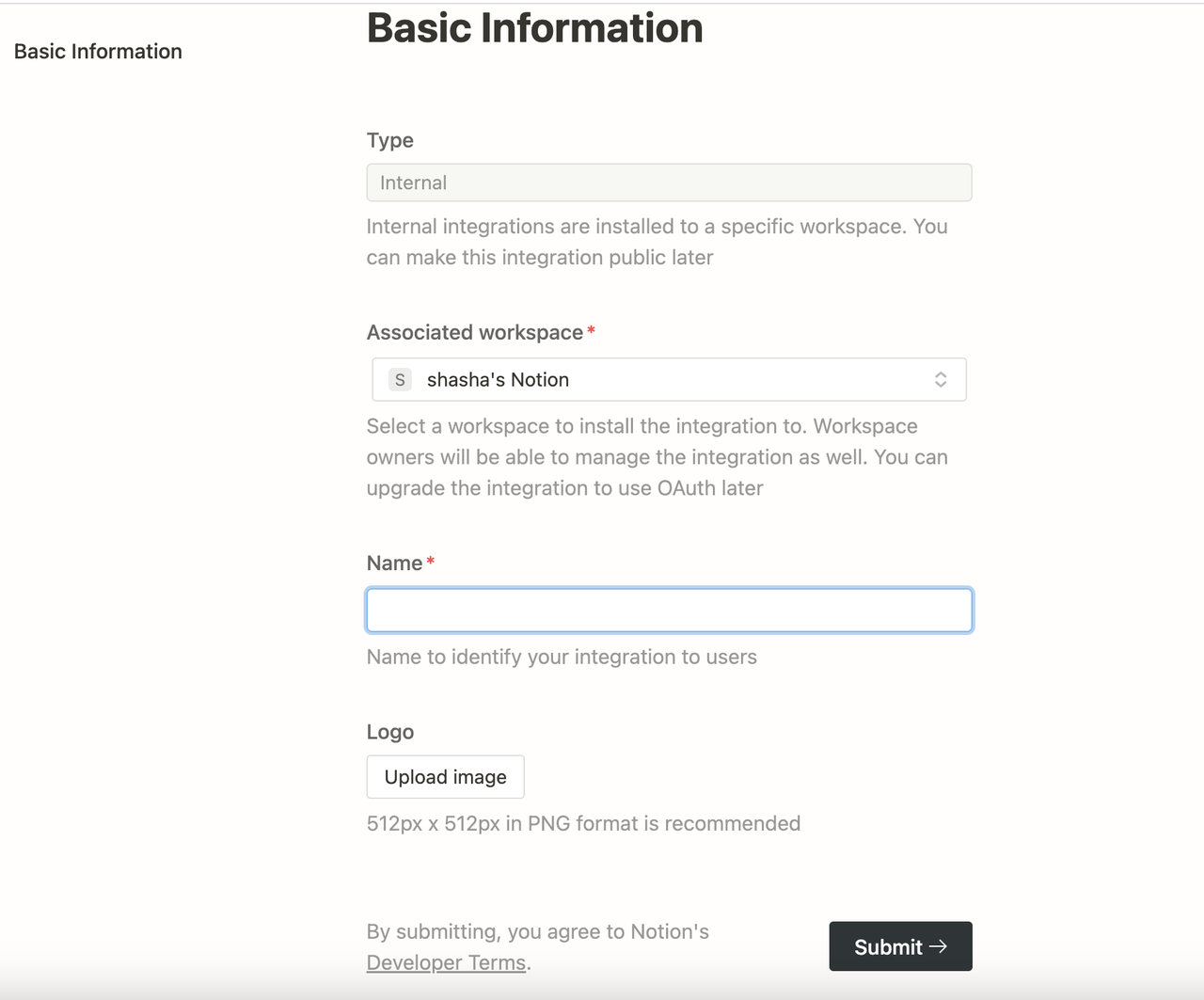
Create an integration in the Notion [integration settings page](https://www.notion.so/my-integrations). All integrations start as internal by default and are associated with the Notion workspace you choose, so you need to be the workspace owner to create one.
Click **New integration**. The type is **Internal** by default and cannot be modified. Select the associated workspace, enter the integration name, upload a logo, and click **Submit**.
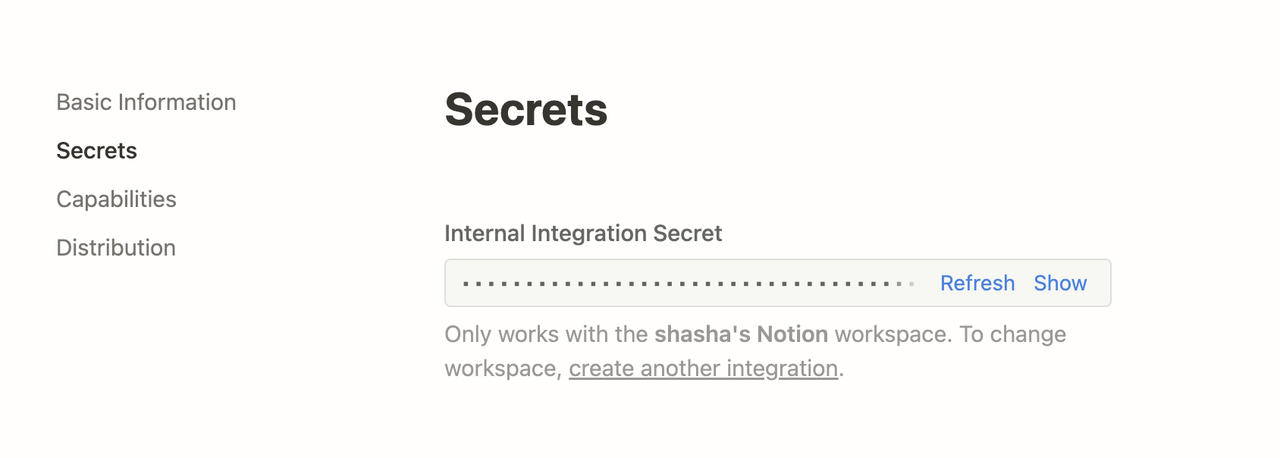
Update the integration's settings as needed under the **Capabilities** tab, then click **Show** under **Secrets** to copy the secret.
In your Dify deployment's `.env` file, configure the following environment variables:
```
NOTION_INTEGRATION_TYPE=internal
NOTION_INTERNAL_SECRET=your-internal-secret
```
#### Use a public integration
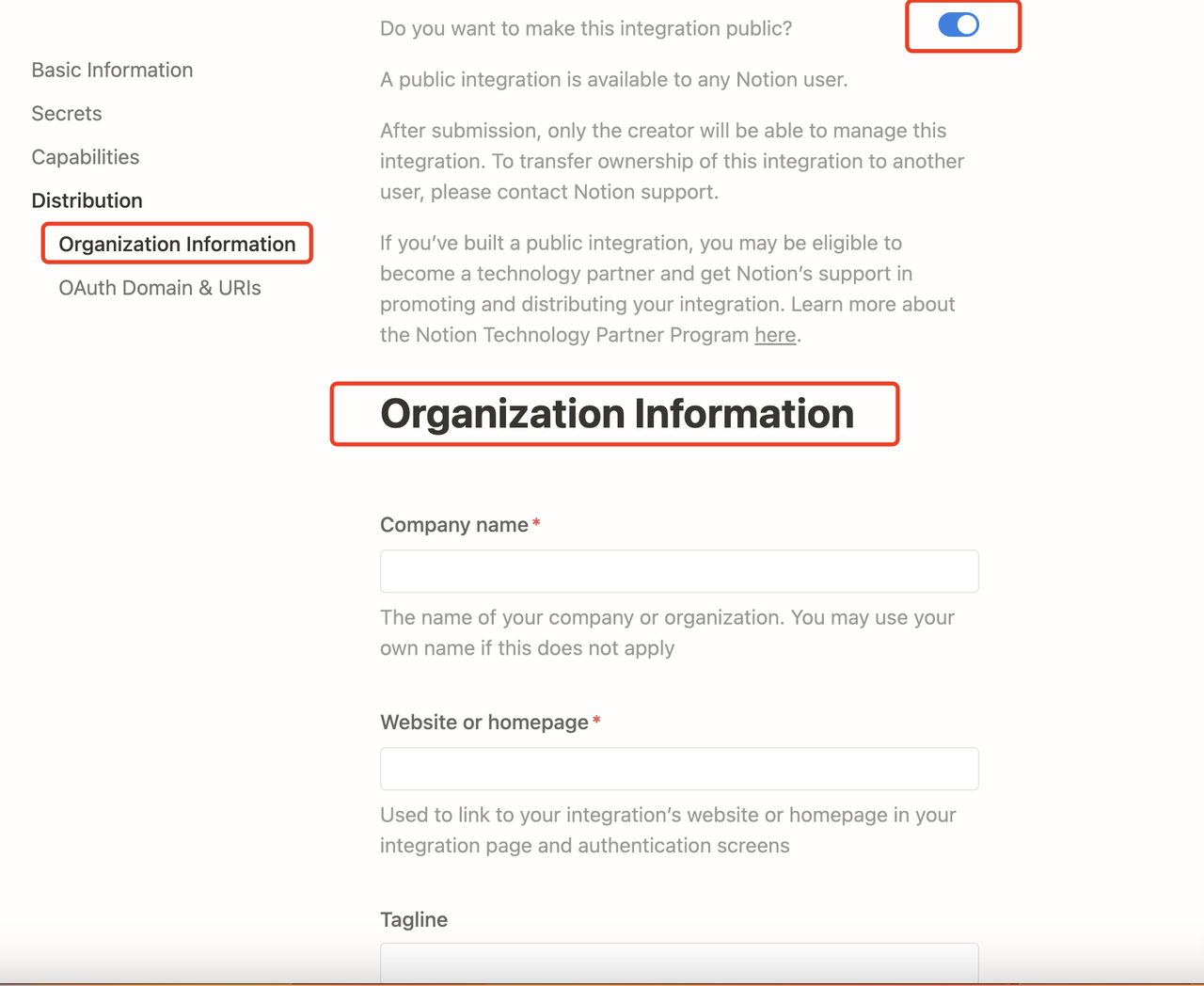
Upgrade the internal integration to a public integration. Navigate to the integration's **Distribution** page and toggle the switch to make it public. You'll need to fill in additional information in the **Organization Information** form, including company name, website, and redirect URL, then click **Submit**.
Once the integration is public, retrieve the integration key from the **Keys** tab:
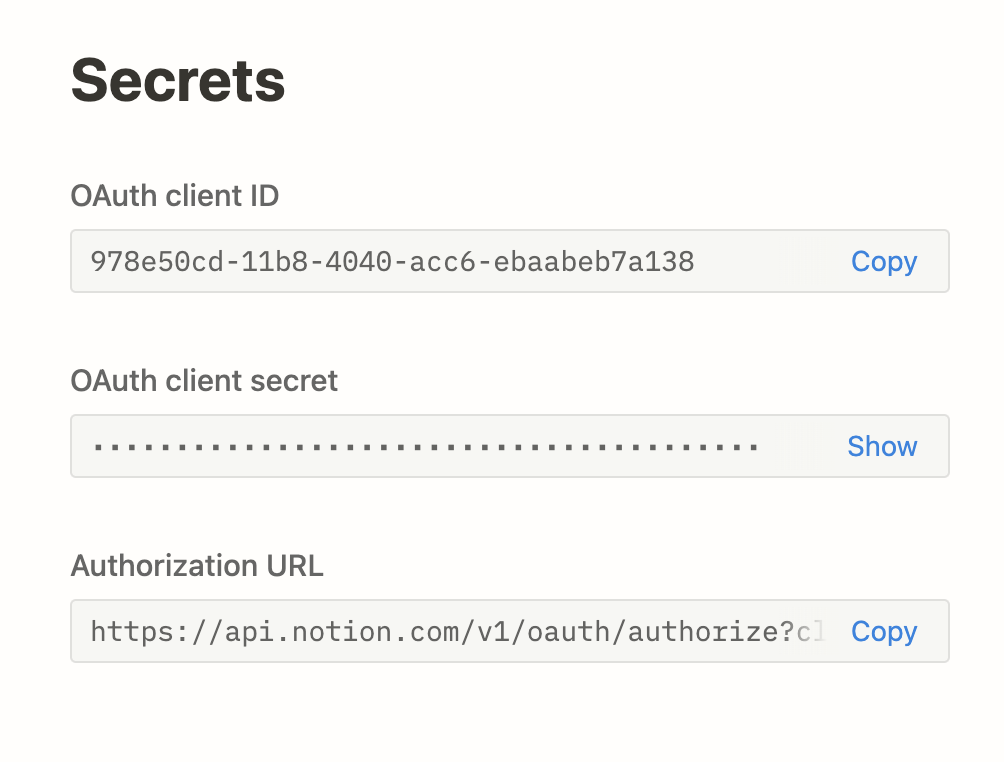
In your Dify deployment's `.env` file, configure the following environment variables:
```
NOTION_INTEGRATION_TYPE=public
NOTION_CLIENT_SECRET=your-client-secret
NOTION_CLIENT_ID=your-client-id
```
Restart Dify to pick up the new environment variables. You can then authorize Notion and import data following the steps above.