> ## Documentation Index
> Fetch the complete documentation index at: https://docs.dify.ai/llms.txt
> Use this file to discover all available pages before exploring further.

# Template

> Transform and format data using Jinja2 templating

The Template node transforms and formats data from multiple sources into structured text using Jinja2 templating. Use it to combine variables, format outputs, and prepare data for downstream nodes or end users.
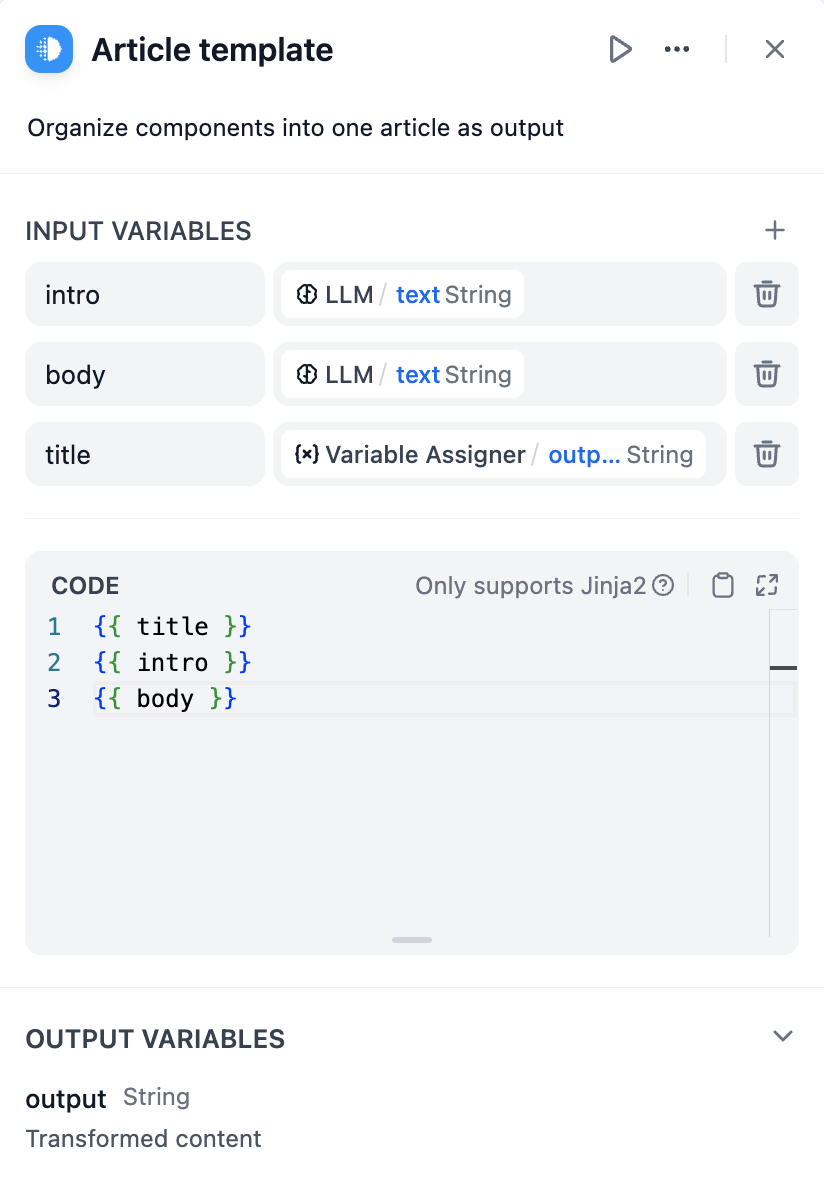
<Frame caption="Template Node Configuration Interface">
  ![Template Node Configuration Interface](https://assets-docs.dify.ai/2025/04/0838bb5c7e1d1a58ed30fcd9fc48920f.png)
</Frame>

## Jinja2 Templating

Template nodes use Jinja2 templating syntax to create dynamic content that adapts based on workflow data. This provides programming-like capabilities including loops, conditionals, and filters for sophisticated text generation.

### Variable Substitution

Reference workflow variables using double curly braces: `{{ variable_name }}`. You can access nested object properties and array elements using dot notation and bracket syntax.

```jinja theme={null}
{{ user.name }}
{{ items[0].title }}
{{ data.metrics.score }}
```

### Conditional Logic

Show different content based on data values using if-else statements:

```jinja theme={null}
{% if user.subscription == 'premium' %}
Welcome back, Premium Member! You have access to all features.
{% else %}
Consider upgrading to Premium for additional capabilities.
{% endif %}
```

### Loops and Iteration

Process arrays and objects with for loops to generate repetitive content:

```jinja theme={null}
{% for item in search_results %}
### Result {{ loop.index }}
**Score**: {{ item.score | round(2) }}
{{ item.content }}
---
{% endfor %}
```
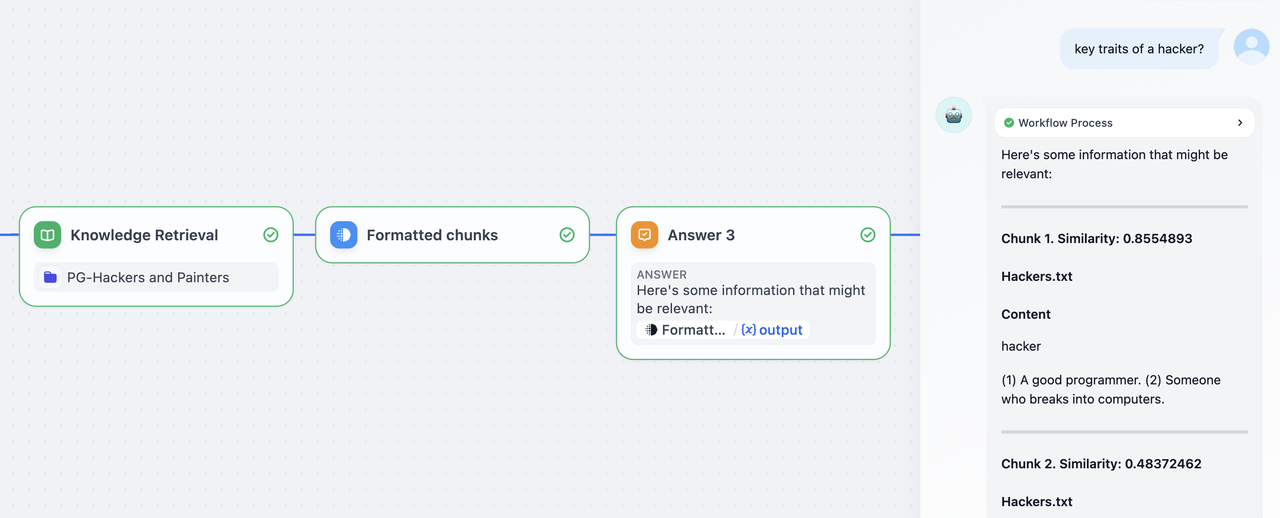
<Frame caption="Template Processing Knowledge Retrieval Results">
  ![Template Processing Knowledge Retrieval Results](https://assets-docs.dify.ai/2025/04/0ae3f13cf725cb2c52c72cc354e592ee.png)
</Frame>

## Data Formatting

### Filters

Jinja2 filters transform data during template rendering:

```jinja theme={null}
{{ name | upper }}
{{ price | round(2) }}
{{ content | replace('\n', '<br>') }}
{{ tags | join(', ') }}
{{ score | default('No score available') }}
```

### Error Handling

Handle missing or invalid data gracefully using default values and conditional checks:

```jinja theme={null}
{{ user.email | default('No email provided') }}
{{ metrics.accuracy | round(2) if metrics.accuracy else 'Not calculated' }}
```

## Interactive Forms

Templates can generate interactive HTML forms for structured data collection in Chatflows.

On submit, the form values are sent to the chat as the end user's next message. The format depends on the `<form>`'s `data-format` attribute:

* **`data-format="json"`**: values are serialized as a JSON object. A downstream Code node or Parameter Extractor can `JSON.parse` it (or pattern-match it) to pull out each field.
* **Unset (or any other value)**: values are sent as plain text, one `name: value` per line. Easier for an LLM to read.

For example:

<Columns>
  <Column>
    ```html theme={null}
    <form data-format="json">
      <label for="username">Username:</label>
      <input type="text" name="username" placeholder="Please enter" />
      <label for="password">Password:</label>
      <input type="password" name="password" placeholder="Please enter" />
      <label for="content">Content:</label>
      <textarea name="content"></textarea>
      <label for="date">Date:</label>
      <input type="date" name="date" />
      <label for="time">Time:</label>
      <input type="time" name="time" />
      <label for="datetime">Datetime:</label>
      <input type="datetime" name="datetime" />
      <label for="select">Select:</label>
      <input type="select" name="select" data-options='["Option A","Option B","Option C"]' />
      <input type="checkbox" name="agreed" data-tip="By checking this means you agreed" />
      <button data-variant="primary">Login</button>
    </form>
    ```
  </Column>

  <Column>
    <Frame>
      <img src="https://assets-docs.dify.ai/2025/04/9d24e9cfa3cdde00e4eee15bd4bbea76.png" alt="Interactive Form Rendered in Chat Interface" width="100%" />
    </Frame>
  </Column>
</Columns>

### Supported Tags

| <div style={{width: '30px'}}>Tag</div> | Attributes                                                                    | Notes                                                                                                                                                                                                                                                                                                                                                                                            |
| :------------------------------------- | :---------------------------------------------------------------------------- | :----------------------------------------------------------------------------------------------------------------------------------------------------------------------------------------------------------------------------------------------------------------------------------------------------------------------------------------------------------------------------------------------- |
| `<form>`                               | `data-format`                                                                 | Container for form fields.<br /><br />Set `data-format="json"` to receive submissions as JSON; any other value (or unset) sends plain text.                                                                                                                                                                                                                                                      |
| `<label>`                              | `for`                                                                         | Renders the inner text as a field label.<br /><br />Set `for` to the field's `name` to associate them. Place the `<label>` before its field in the source so it appears above.                                                                                                                                                                                                                   |
| `<input>`                              | `type`, `name`, `value`, `placeholder`, `checked`, `data-tip`, `data-options` | See input types below. `name` is required for the field to appear in the submission and must match `[A-Za-z][A-Za-z0-9_-]*`.                                                                                                                                                                                                                                                                     |
| `<textarea>`                           | `name`, `placeholder`, `value`                                                | Multi-line text input.                                                                                                                                                                                                                                                                                                                                                                           |
| `<button>`                             | `data-variant`, `data-size`                                                   | Submits the form. <ul><li>Variants: `primary`, `warning`, `secondary`, `secondary-accent`, `ghost`, `ghost-accent`, `tertiary`.</li><li>Sizes: `small`, `medium`, `large`.</li></ul>Values outside these lists are ignored and the button falls back to the default styling.<br /><br />Ignores `data-message` and `data-link`, which only apply to [quick-reply buttons](#quick-reply-buttons). |

<Note>
  Do not leave blank lines between tags inside `<form>`. A blank line ends the HTML block during markdown parsing, and any tags after the break will fail to render as form fields.
</Note>

### Supported Input Types

| `type` value                          | Renders as                                                           | Submitted as                                                 |
| :------------------------------------ | :------------------------------------------------------------------- | :----------------------------------------------------------- |
| `text`, `password`, `email`, `number` | Single-line input with matching HTML semantics                       | String                                                       |
| `date`                                | Date picker                                                          | ISO date string (e.g., `2026-01-10`)                         |
| `datetime`                            | Date picker with time selection                                      | ISO date-time string (e.g., `2026-01-10T14:30:00.000+08:00`) |
| `time`                                | Time picker                                                          | String (includes a full date prefix, not just the time)      |
| `checkbox`                            | Checkbox followed by the `data-tip` text as a label                  | Boolean (`true` or `false`)                                  |
| `select`                              | Dropdown built from the `data-options` JSON array of strings         | Selected option string                                       |
| `hidden`                              | Renders as an `<input type="hidden">` element; not visible in the UI | String                                                       |

* Any other `type` value renders an "Unsupported tag" fallback in place of the field.

* HTML5 validation attributes such as `required`, `min`, `max`, and `pattern` are not enforced.

* Browsers may autofill `<input type="password">` and `<input type="email">` with saved credentials for the current site; use `<input type="text">` for fields that should not be prefilled.

### Quick-Reply Buttons

A standalone `<button>` placed outside any `<form>` renders as a clickable button in the chat. Use these to offer canned responses or external links inline with the assistant's message. For example:

```html wrap theme={null}
Would you like to see more options?
<button data-variant="primary" data-message="Yes, show me more">Yes</button> <button data-variant="secondary" data-message="No, that is enough">No</button> <button data-variant="secondary-accent" data-link="https://docs.dify.ai">Read the docs</button>
```

<Frame>
  <img src="https://mintcdn.com/dify-6c0370d8/Z3OKhpy531FuKTXe/images/use-dify/workflow/template-quick-reply-button.png?fit=max&auto=format&n=Z3OKhpy531FuKTXe&q=85&s=b453652fea0608c2f0475fbed05b78ca" alt="Quick Reply Button" width="706" height="214" data-path="images/use-dify/workflow/template-quick-reply-button.png" />
</Frame>

| Attribute      | Click behavior                                      |
| :------------- | :-------------------------------------------------- |
| `data-message` | Sends the text as the end user's next chat message. |
| `data-link`    | Opens the URL in a new tab. Must be a valid URL.    |

If both are set, `data-link` takes precedence. A button with neither renders but performs no action when clicked.

Apply `data-variant` and `data-size` for styling, using the same values listed for [form buttons above](#supported-tags).

<Note>
  Unlike form buttons, standalone buttons pass `data-variant` and `data-size` through to the underlying component without validation. An unrecognized value can leave the button rendered as plain text rather than a styled button.

  Use only the values listed above.
</Note>

## Output Limits

Template output is limited to **400,000 characters** (configurable via `TEMPLATE_TRANSFORM_MAX_LENGTH`). This prevents memory issues and ensures reasonable processing times for large template outputs.
