> ## Documentation Index
> Fetch the complete documentation index at: https://docs.dify.ai/llms.txt
> Use this file to discover all available pages before exploring further.
# Integration Trigger
Triggers are available for workflow applications only.
An Integration Trigger starts your workflow automatically when a specific event occurs in an external system. You subscribe to those events through an integration, then add the matching trigger to your workflow.
For example, after installing a GitHub trigger integration, you can subscribe to events such as `Pull Request`, `Push`, and `Issue`. Subscribe to `Pull Request` and add its trigger, and the workflow runs whenever someone opens a pull request in the chosen repository.
## Add and Configure an Integration Trigger
1. On the workflow canvas, right-click and select **Add Node** > **Start**, then choose the integration trigger event you want to start the workflow. To find more integrations, search the [Marketplace](https://marketplace.dify.ai/?language=en-US\&category=trigger).
* If no integration exists for your target system, [request one](https://github.com/langgenius/dify-plugins/issues/new?template=plugin_request.yaml), [build one yourself](/en/develop-plugin/dev-guides-and-walkthroughs/trigger-plugin), or use a [Webhook Trigger](/en/self-host/use-dify/nodes/trigger/webhook-trigger) instead.
* A workflow can have multiple Integration Triggers. If their branches share downstream nodes, add a [Variable Aggregator](/en/self-host/use-dify/nodes/variable-aggregator) to converge them.
2. Select an existing subscription or [create a new one](/en/self-host/use-dify/nodes/trigger/plugin-trigger#create-a-subscription). The trigger needs a subscription to receive events.
3. Configure any other required settings.
The output variables of an integration trigger are defined by the integration and can't be modified.
## Create a Subscription
A subscription is a webhook that listens for events from an external system. Each integration supports up to 10 subscriptions per workspace.
A webhook lets one system send real-time data to another. When an event occurs, the source system packages the details into an HTTP request and sends it to a URL the destination system provides.
**Prerequisite: set the callback URL base**
Dify builds each subscription's callback URL from the `TRIGGER_URL` environment variable plus an integration-specific path. The default `http://localhost` is unreachable by external systems, so set `TRIGGER_URL` to a public domain or IP they can reach, then restart Dify before creating subscriptions.
Dify supports two ways to create a subscription, depending on what the integration supports.
* **Automatic**: You pick the events to subscribe to, and Dify creates the webhook in the external system for you. This requires prior authorization, through OAuth or an API key, so Dify can set it up on your behalf.
* **Manual**: You create the webhook yourself using the callback URL Dify provides. No authorization needed.
1. Select **Create with OAuth** > **Custom**.
2. In the external system, create an OAuth application using the callback URL Dify provides.
3. Back in Dify, enter the application's client ID and client secret, then click **Save and Authorize**.
Once saved, the same credentials can be reused for future subscriptions.
4. Name the subscription, select the events to subscribe to, and configure any other required settings.
Subscribe to all available events. A trigger only fires for events its subscription covers, so a broad subscription can be reused by any trigger you add later instead of creating new ones.
5. Click **Create**.
1. Select **Create with API Key**.
2. Enter the required authentication details, then click **Verify**.
3. Name the subscription, select the events to subscribe to, and configure any other required settings.
Subscribe to all available events. A trigger only fires for events its subscription covers, so a broad subscription can be reused by any trigger you add later instead of creating new ones.
4. Click **Create**.
1. Select **Paste URL to create a new subscription**.
2. Name the subscription and use the callback URL Dify provides to create a webhook in the external system.
3. (Optional) Test it: trigger a subscribed event, then check the **Request Logs** at the bottom of the **Manual Setup** page for the received request and Dify's response.
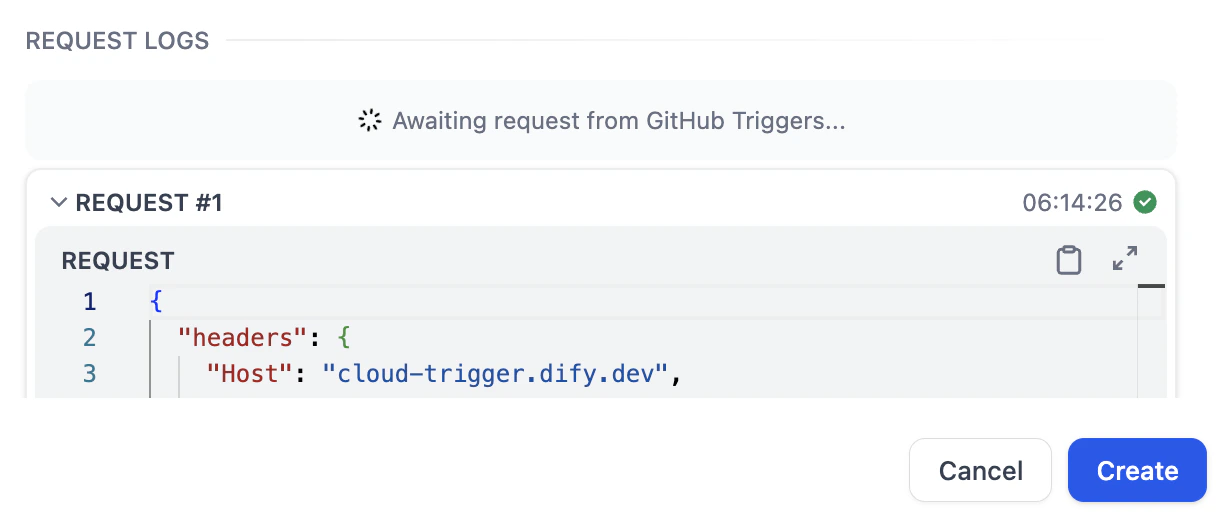 4. Click **Create**.
## Manage Subscriptions
Manage an integration's subscriptions from **Integrations** > **Trigger**. Open the integration to see its subscriptions, including how many workflows use each one, and to edit or delete them.
## Test an Integration Trigger
To test an unpublished trigger, first click **Run this step** or test-run the whole workflow. This puts the trigger into a listening state so it can capture subscribed events; otherwise events are ignored even when they occur.
4. Click **Create**.
## Manage Subscriptions
Manage an integration's subscriptions from **Integrations** > **Trigger**. Open the integration to see its subscriptions, including how many workflows use each one, and to edit or delete them.
## Test an Integration Trigger
To test an unpublished trigger, first click **Run this step** or test-run the whole workflow. This puts the trigger into a listening state so it can capture subscribed events; otherwise events are ignored even when they occur.