

Agents are chat-style apps where the model can reason through a task, decide what to do next, and use tools when needed to complete the user’s request. Use it when you want the model to autonomously decide how to approach a task using available tools, without designing a multi-step workflow. For example, building a data analysis assistant that can fetch live data, generate charts, and summarize findings on its own.Documentation Index
Fetch the complete documentation index at: https://docs.dify.ai/llms.txt
Use this file to discover all available pages before exploring further.
Agents keep up to 500 messages or 2,000 tokens of history per conversation. If either limit is exceeded, the oldest messages will be removed to make room for new ones.
Configure
Write the Prompt
The prompt tells the model what to do, how to respond, and what constraints to follow. For an agent, the prompt also guides how the model reasons through tasks and decides when to use tools, so be specific about the workflow you expect. Here are some tips for writing effective prompts:- Define the persona: Describe who the model should act as and the expertise it should draw on.
- Specify the output format: Describe the structure, length, or style you expect.
- Set constraints: Tell the model what to avoid or what rules to follow.
- Guide tool usage: Mention specific tools by name and describe when they should be used.
- Outline the workflow: Break down complex tasks into logical steps the model should follow.
Create Dynamic Prompts with Variables
To adapt the agent to different users or contexts without rewriting the prompt each time, add variables to collect the necessary information upfront. Variables are placeholders in the prompt—each one appears as an input field that users fill in before the conversation starts, and their values are injected into the prompt at runtime. Users can also update variable values mid-conversation, and the prompt will adjust accordingly. For example, a data analysis agent might use a domain variable so users can specify which area to focus on:- Short Text
- Paragraph
- Select
- Number
- Checkbox
- API-based Variable
Accepts up to 256 characters. Use it for names, email addresses, titles, or any brief text input that fits on a single line.
Label Name is what end users see for each input field.
Generate or Improve the Prompt with AI
If you’re unsure where to start or want to refine the existing prompt, click Generate to let an LLM help you draft it. Describe what you want from scratch, or referencecurrent_prompt and specify what to improve. For more targeted results, add an example in Ideal Output.
Each generation is saved as a version, so you can experiment and roll back freely.
Extend the Agent with Dify Tools
Add Dify tools to enable the model to interact with external services and APIs for tasks beyond text generation, such as fetching live data, searching the web, or querying databases. The model decides when and which tools to use based on each query. To guide this more precisely, mention specific tool names in your prompt and describe when they should be used.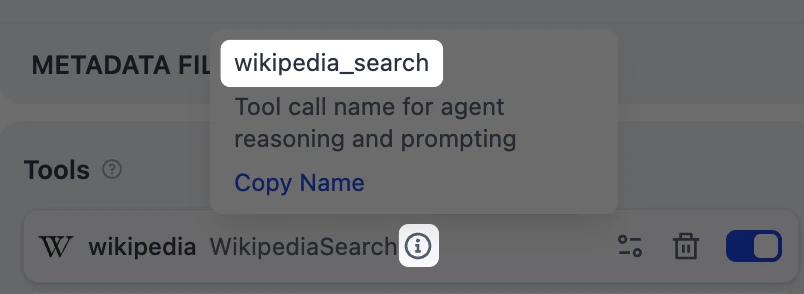
To change the default credential, go to Tools or Plugins.
Maximum Iterations
Maximum Iterations in Agent Settings limits how many times the model can repeat its reasoning-and-action cycle (think, call a tool, process the result) for a single request. Increase this value for complex, multi-step tasks that require multiple tool calls. Higher values increase latency and token costs.Ground Responses in Your Own Data
To ground the model’s responses in your own data rather than general knowledge, add a knowledge base. The model evaluates each user query against your knowledge base descriptions and decides whether retrieval is needed—you don’t need to mention knowledge bases in your prompt. The more detailed your knowledge base description, the better the model can determine relevance, leading to more accurate and targeted retrieval.Configure App-Level Retrieval Settings
To fine-tune how retrieval results are processed, click Retrieval Setting.There are two layers of retrieval settings—the knowledge base level and the app level.Think of them as two consecutive filters: the knowledge base settings determine the initial pool of results, and the app settings further rerank the results or narrow down the pool.
-
Rerank Settings
- Weighted Score The relative weight between semantic similarity and keyword matching during reranking. Higher semantic weight favors meaning relevance, while higher keyword weight favors exact matches. Weighted Score is available only when all added knowledge bases are indexed with High Quality mode.
-
Rerank Model
The rerank model to re-score and reorder all the results based on their relevance to the query.
If any multimodal knowledge bases are added, select a multimodal rerank model (marked with a Vision tag) as well. Otherwise, retrieved images will be excluded from reranking and the final output.
- Top K The maximum number of top results to return after reranking. When a rerank model is selected, this value will be automatically adjusted based on the model’s maximum input capacity (how much text the model can process at once).
- Score Threshold The minimum similarity score for returned results. Results scoring below this threshold are excluded. Use higher thresholds for stricter relevance or lower thresholds to include broader matches.
Search Within Specific Documents
By default, retrieval searches across the entire knowledge base. To restrict retrieval to specific documents, enable manual or automatic metadata filtering. This improves retrieval precision, especially when your knowledge base is large or contains content for different contexts. For creating and managing document metadata, see Metadata.Process Multimodal Inputs
To allow end users to upload files, select a model with the corresponding multimodal capabilities. The relevant file type toggles—Vision, Audio, or Document—appear once the model supports them, and you can enable each as needed.You can quickly identify a model’s supported modalities by its tags.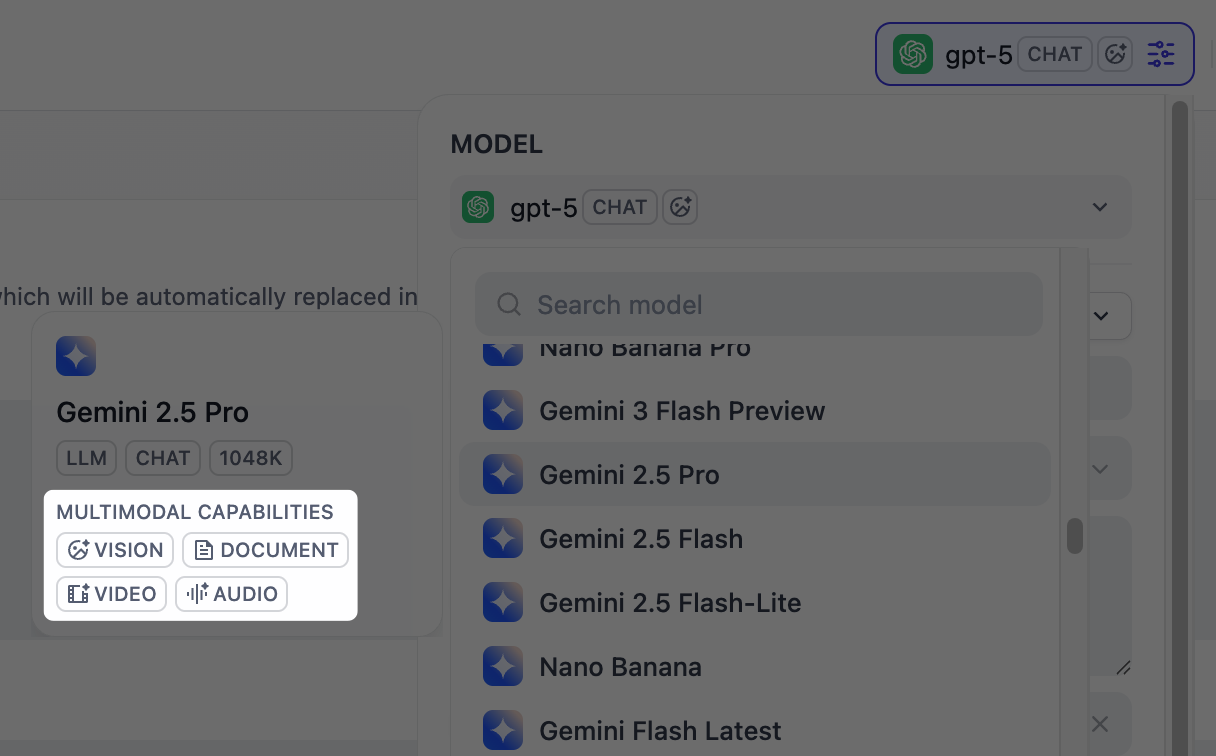
-
Resolution: Controls the detail level for image processing only.
- High: Better accuracy for complex images but uses more tokens
- Low: Faster processing with fewer tokens for simple images
- Upload Method: Choose whether users can upload from their device, paste a URL, or both.
- Upload Limit: The maximum number of files a user can upload per message.
For self-hosted deployments, you can adjust file size limits via the following environment variables:
UPLOAD_IMAGE_FILE_SIZE_LIMIT(default: 10 MB)UPLOAD_FILE_SIZE_LIMIT(default: 15 MB)UPLOAD_AUDIO_FILE_SIZE_LIMIT(default: 50 MB)
Debug & Preview
In the preview panel on the right, test your agent in real time. Select a model, type a message, and send it to see how the agent responds. You can adjust a model’s parameters to control how it generates responses. Available parameters and presets vary by model.To compare outputs across different models, click Debug as Multiple Models to run up to 4 models simultaneously.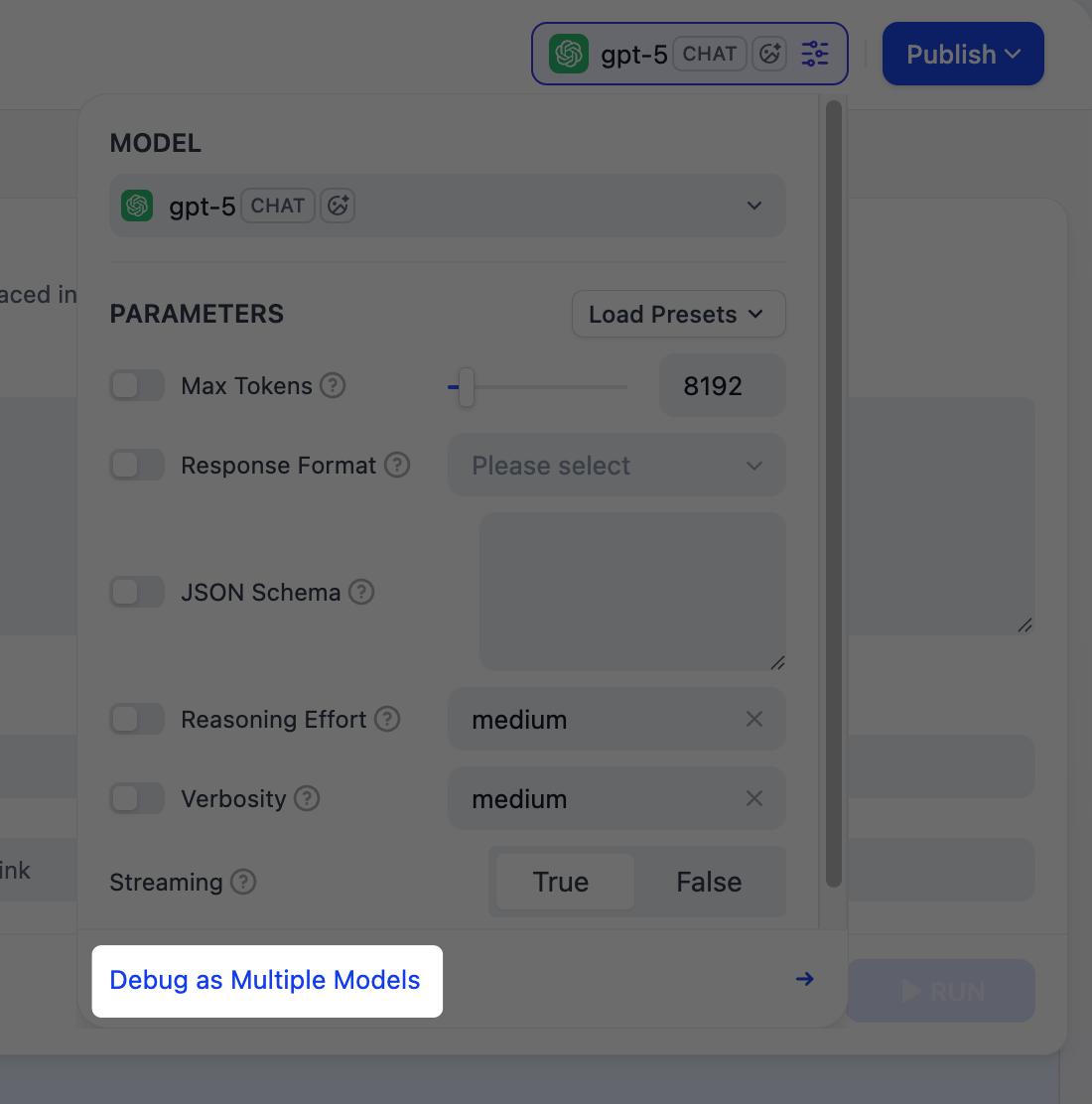
Why This Matters
Why This Matters
An agent needs to judge when to use a tool, which tool fits the task, and how to interpret the result—this depends on the model’s reasoning ability. Models with built-in tool-call support also execute these decisions more reliably.
- Function Calling for models with native support, meaning they can call tools directly.
- ReAct for others, so Dify guides them to use tools through a prompting strategy.